
Projects allow people to collaborate to gather data about sites. Use the “Teams” tab to manage project membership.
Working in Teams
Projects in LandPKS Soil ID are built for collaboration. Once a project is created, the project manager can invite others to join as team members, each with a defined role that controls what they can see and do within the project. Team membership is managed through the Team tab inside any project.
Adding team members
Before adding someone to a project, note the following:
- Only project managers can add team members.
- The person being added must already have a Terraso account. Accounts can be created by signing in to LandPKS Soil ID or the Terraso web app (app.terraso.org).
To add a team member:
1. Open the project.
2. Select the Team tab.
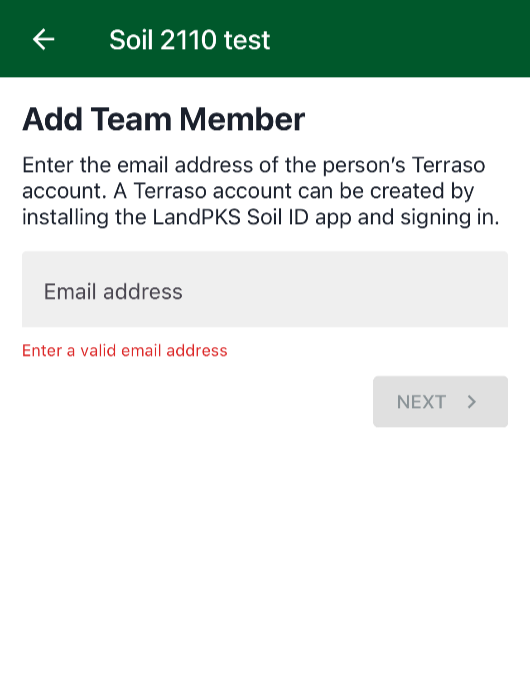
3. Tap Add Team Member.

4. Enter the email address associated with the person’s Terraso account.
5. Select a role for the new member (see user roles below).
6. Tap Next.
Managing team members
Project managers can change a team member’s role or remove them from the project at any time. To access these options, open the Team tab and select the team member’s name from the list.
Change a team member’s role
- Select a new role from the available options.
- Tap Save.
Remove a team member
- Tap Remove from Project.
- Tap Remove in the confirmation dialog.
Note: Removing a team member does not delete their contributed data. All site observations they recorded will be retained in the project.
User roles and permissions
LandPKS Soil ID offers three roles within a project, each with a different level of access. Assign roles based on what each team member needs to do. To check your own role in a project, open the Team tab and look for the label next to your name.
| Permission | Viewer | Contributor | Manager |
|---|---|---|---|
| View all data for all sites in a project | ✓ | ✓ | ✓ |
| Transfer sites into a project | ✓ | ✓ | |
| Add and edit data for sites | ✓ | ✓ | |
| Add and remove team members | ✓ | ||
| Change team member roles | ✓ | ||
| Change project data privacy | ✓ | ||
| Edit pinned note | ✓ | ||
| Edit soil pit depth requirements | ✓ | ||
| Edit data collection requirements | ✓ | ||
| Edit project name and description | ✓ | ||
| Delete the project | ✓ |
Note: Managers have the same level of access as the person who originally created the project. This means a manager can change the role of the project creator or remove them from the project entirely.